
How to Add a Bank in Daman Game
Adding bank details can feel confusing when you are doing it for the first time. A slightly different account-holder name, an incorrect account number or an outdated IFSC code can create problems with a payment request.
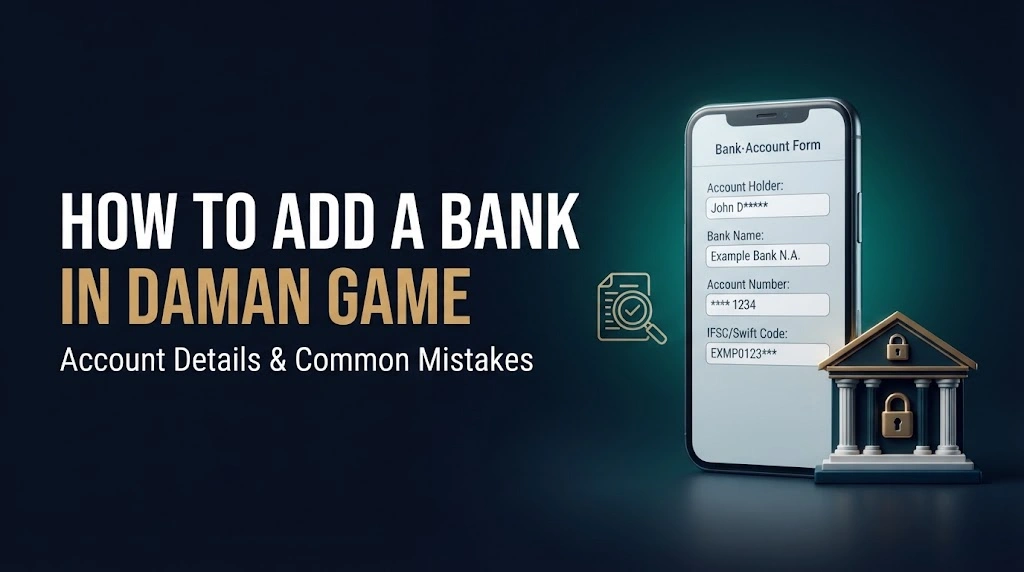
If you are looking for information on how to add a bank in Daman Game, this guide explains the process described in the supplied platform walkthrough, the information involved and the checks that matter before saving anything.
Menu labels and requirements may vary between versions. A bank account being saved does not guarantee that a withdrawal will be approved or completed.
How to Add a Bank in Daman Game
The process described in the source guide follows this route:
Account → Withdraw → Bank Card → Add Bank Account
The bank-details form asks for information such as your bank name, account-holder name, account number, phone number and IFSC code. Review the information carefully before saving it.
If your screen shows different options, do not assume that another website’s instructions apply to your account.
Information Required for the Bank-Details Form
Having accurate information matters more than completing the form quickly.
| Detail | What to check |
|---|---|
| Bank name | It should correspond to the account you are using. |
| Account-holder name | Check the spelling against your bank records. |
| Bank account number | Check every digit before submitting. |
| Phone number | Read the field label carefully to understand which number is requested. |
| IFSC code | Check it against current information from your bank. |
Avoid guessing a missing detail. An error may prevent the form from being accepted or cause problems later.
Step-by-Step Bank Account Process
1. Sign In to Your Existing Account
Open the application you normally use and sign in with your registered details.
Before entering financial information, check the source of the application. A familiar name or an “official” label alone is not proof that an app is trustworthy.
2. Open the Account Section
According to the supplied walkthrough the Account section is accessible from the bottom menu.
This is where the guide places account settings and withdrawal-related options.
3. Select Withdraw
Within the Account section, locate Withdraw.
The source guide describes this as the area containing withdrawal methods and bank-account settings. The layout may differ in another version.
4. Find the Bank Account Option
The walkthrough lists Bank Card, followed by Add Bank Account.
Read the labels shown on your screen carefully rather than assuming that every version uses the same wording.
5. Enter the Requested Details
Complete the form using accurate information from your bank records.
Pay particular attention to the account-holder name, account number and IFSC code. Avoid shortened names or details copied from an old document without checking them.
6. Review Before Saving
Read through the completed form once more before selecting Save.
If a confirmation appears, check what it actually confirms. A message saying that details have been saved is different from confirmation that a withdrawal has been processed.
Do not assume that account linking is always instant.
Common Problems and What They May Mean
Bank Details Will Not Save
Check whether any required fields are empty and whether the form displays a specific error message. The original walkthrough also suggests checking the connection and restarting the app.
If the problem continues, record the exact message. A clear description is more useful to support than repeatedly submitting the same form.
If the problem continues, learn how to submit a support request with the error message and relevant screenshots.
Account-Holder Name Does Not Match
Compare the name entered with the name in your bank records. Shortened names and spelling differences can create inconsistencies.
Do not substitute another person’s bank details to get past an error.
The IFSC Code Is Rejected
Recheck the code using current information from your bank. Avoid relying on a code copied from an unrelated branch or an old online listing.
If the information is correct but still rejected, the error needs clarification rather than repeated guesses.
A Withdrawal Is Delayed After Saving the Bank
Saving bank information and processing a withdrawal are separate actions.
Keep the request reference, date, amount and any status messages. Refer to the platform’s documented processing terms rather than assuming a payment must arrive within a fixed number of hours.
Is It Safe to Add Bank Details in Daman Game?
The supplied article does not provide enough evidence to confirm the platform’s security or encryption claims.
Using an app described as “official” does not, by itself, establish how personal information is protected. Be careful about where you enter financial details and whom you contact for help.
Never disclose your banking password, OTP, ATM PIN or UPI PIN to someone claiming to resolve an account issue. Avoid sharing sensitive information through unsolicited messages.
How Long Does a Withdrawal Take?
There is no verified universal withdrawal timeframe in the supplied material.
The competitor’s claim that the maximum time is 24 hours should not be treated as a guarantee. Review the terms attached to your own request and keep a record of any processing estimate provided.
Correct bank information can help avoid errors but it cannot guarantee approval or faster payment.
Final Checks
Before considering the process complete, confirm that the saved details are accurate and that you understand any status message shown.
Keep confirmation records, protect your banking credentials and distinguish between an account being saved and money actually reaching your bank. Those checks are more useful than promises of instant linking or guaranteed withdrawals.